I was making a budget for a museum that asked my consulting and training to set up their imaging lab and I thought that almost $800 for a photo editing software (Photoshop CS6) was a bit too much. Photoshop is an amazing tool which definitely merits its considerable cost. Though, the point is that the basic photo editing that an imaging lab for conservation would perform, doesn’t justify the purchase of Photoshop. CHSOS is all about avoiding unnecessary expenses in museums and wisely spend money when it comes to technical and scientific tool for art documentation and examination. So, this post and the next one are about FREE alternative to the expensive Photoshop, if all you have to do is just editing images for art documentation.
We developed Pigments Checker for photographers interested in technical documentation of paintings. It has 54 swatches of historical pigments designed for infrared photography, ultraviolet photography and other technical photographic methods for art examination. Check it out!
Pigments Checker is a collection of 54 swatches of historical pigments that have been applied using gum arabic as a binder on a cellulose and cotton watercolor paper, acids and lignin free. This paper is not treated with optical brighteners, it’s slightly UV fluorescent, and it reflects IR. Two cross-hair lines, 0,2 mm (vertical) and 0.4 mm (horizontal) are printed on each swatch of paper before the application of paint, in order to have a means to evaluate the pigments’ transparency in the IR and IRR imaging. Among all the pigments and their varieties ever used in art these pigments collection select the most used ones from antiquity to early 1950’.
http://youtu.be/BK4A0nXm2JI
RAW files conversion
This is the first step. For art documentation it is recommended to shoot Raw. This format is native to the camera and allows for the best post-processing since all the image information is preserved. Photoshop has a plugin called Camera Raw which manages and can convert raw files from all the major camera manufacturers. Though, there are valid FREE alternatives. Since I’m a Nikon user, I’ll introduce just a raw converter for Nikon cameras., the Nikon View NX2. This software can be downloaded for free and will not make you miss Photoshop Camera Raw. Actually, Nikon raw file conversion performed by a Nikon software should be, supposedly, better than that performed by a third party software. A brief review of View NX2 features.
Batch processing. Since we apply panoramic photography to get both high resolution multispectral images and huge infrared reflectograms, it is necessary to process a large number of images and therefore automatic batch processing is mandatory. Fortunately, Nikon View NX2 has a batch processing utility that works as a charm.
– In the files navigation window, open the folder containing the images to be edited and converted and select them all (CTRL +A).
– Apply the editing necessary such as white balance, sharpening, contrast, brightness and so on.
– Click Convert files. The images are converted with the adjustments you applied and saved in the folder you choose.
Let’s look now at the specific Raw files editing capability of Nikon View NX2 and how those compare to Camera Raw.
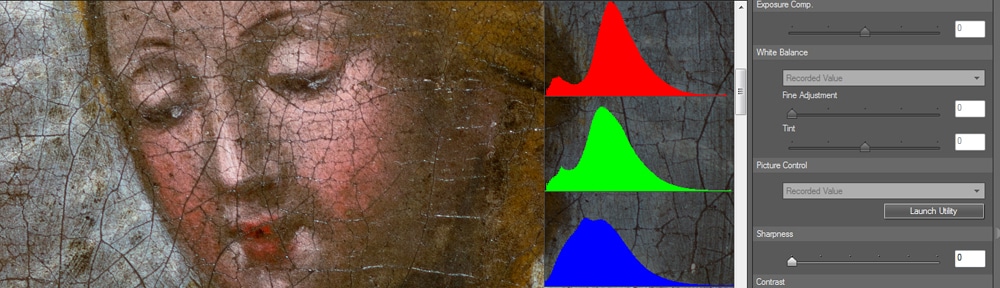
Adjustments. On the right side of the View NX2 window the Adjustments panel contains all we need to edit the raw images before the actual conversion into JPEG or TIFF. From top to bottom:
– Exposure. Equivalent to Camera Raw exposure
– White Balance. Can be performed using the image that has the color checker and selecting “Use gray point”. Analogous to Camera Raw’s White Balance Tool.
– Picture control. Its Monochrome option it’s used for grey scale conversion to edit the infrared and UV reflected images.
– Sharpness, Contrast, Brightness. These are self-explanatory.
I had a Fujifilm S5 Pro that I used for multispectral imaging back in Brooklyn. This camera was manufactured specifically for UV-IR forensic photography. I sold it to switch to a Nikon D800. The camera was great, I sold it just because I needed a higher pixel count (I went from 12MP to 36MP) and there were…
CHSOS was recently asked to perform Technical Photography documentation of the Codex Xolotl and Mapa Quinatzin at the Bibliothèque Nationale de France.
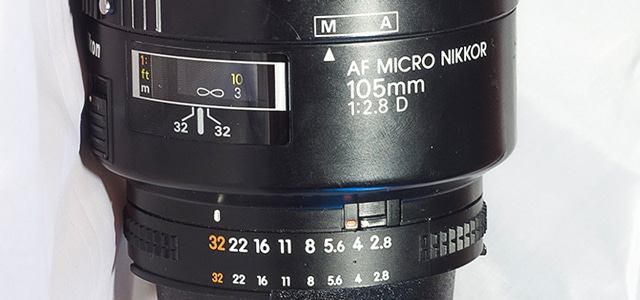
Just tested the great Nikon Nikkor Micro 105mm f2.8 D for infrared photography. The data are available at the Infrared Photography Lenses Database Depending on the application and the task the infrared photo should be taken, low or high aperture numbers could be necessary. For the specific needs of infrared photography for art documentation it…
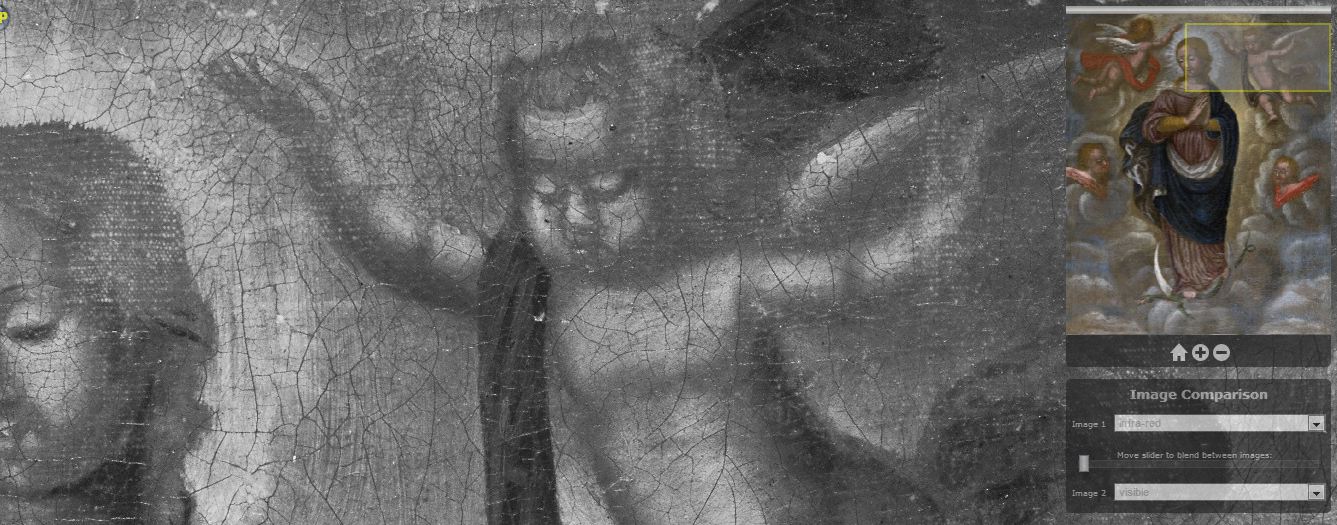
Ruven Pillay – your contact to know more about IIPImage – was so kind to host another set of 8 Multispectral Images. The images hosted on IIPIMAGE are available here and belong to the painting in the figure below. Highlights of the examination are suggested here. Here you can download a report I wrote as an example of…
I’m glad someone from this field took a closer look at this software. I’ve been curious about it but I have the Adobe products.
I find that I’m using Photoshop less and less in favor of Adobe Lightroom, which is much cheaper, faster and has organization and metadata features that I find invaluable, since I’m always dealing with sets of pictures. And it can also apply processes in batch and automated modes, on both image data and metadata.
I wish people could just get Adobe Bridge, which itself would suffice, but it only comes with other expensive Adobe programs.
It’s worth mentioning that Adobe’s free “Adobe DNG Converter” has some interesting features, notably allowing you to lightly compress and/or reduce the pixel count of a batch of images while preserving raw editing capability. It seems crazy that I would throw away data but the fact is my lenses just aren’t good enough to justify the space and backup management of 24 megapixel images for everything I shoot.


Does it come for Mac?
yes, it does!
I’m glad someone from this field took a closer look at this software. I’ve been curious about it but I have the Adobe products.
I find that I’m using Photoshop less and less in favor of Adobe Lightroom, which is much cheaper, faster and has organization and metadata features that I find invaluable, since I’m always dealing with sets of pictures. And it can also apply processes in batch and automated modes, on both image data and metadata.
I wish people could just get Adobe Bridge, which itself would suffice, but it only comes with other expensive Adobe programs.
It’s worth mentioning that Adobe’s free “Adobe DNG Converter” has some interesting features, notably allowing you to lightly compress and/or reduce the pixel count of a batch of images while preserving raw editing capability. It seems crazy that I would throw away data but the fact is my lenses just aren’t good enough to justify the space and backup management of 24 megapixel images for everything I shoot.